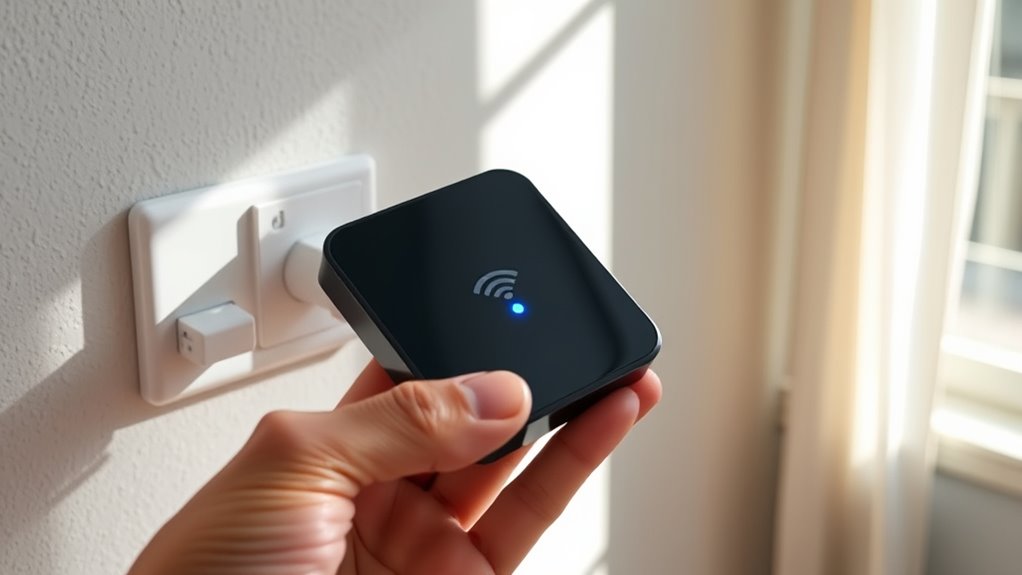

If your Wi‑Fi feels weak and video calls keep buffering or freezing, a simple $20 Wi‑Fi extender can help. These budget-friendly devices amplify your current signal, eliminate dead zones, and improve coverage in hard-to-reach spots. Place the extender halfway between your router and the weak spot, follow setup steps carefully, and you’ll enjoy clearer, more stable video calls. Keep going to discover detailed tips to maximize your Wi‑Fi performance.
Key Takeaways
- Reposition your router to a central, elevated location away from thick walls and metal objects for better signal coverage.
- Use a Wi-Fi extender or repeater, which typically costs around $20, to boost signal strength in dead zones.
- Minimize interference by keeping devices like microwaves and cordless phones away from your router and extenders.
- Regularly update your router’s firmware to improve performance and resolve connectivity issues.
- Limit the number of devices connected during video calls to reduce bandwidth congestion and improve call clarity.
Understanding Why Wi‑Fi Signal Weakens

Wi-Fi signals can weaken for several reasons, often due to obstacles and interference that disrupt the signal’s path. One common cause is signal interference from other electronic devices like microwaves or cordless phones, which share the same frequency bands. Additionally, poor router placement plays a significant role in signal strength. If your router sits behind thick walls, inside cabinets, or on a lower shelf, the signal has to work harder to reach your devices, losing strength along the way. Interference and improper placement create dead zones and slow speeds, making your internet connection less reliable. To improve your Wi-Fi, avoid placing your router near metal objects or other electronics, and position it in a central, elevated spot for ideal coverage. Proper Wi-Fi signal optimization can significantly enhance connection quality and stability.
The Impact of Poor Connectivity on Video Calls

When your internet connection is weak or unstable, video calls can quickly become frustrating. You might experience choppy audio, frozen images, or dropped calls. Poor connectivity often stems from signal interference, which weakens your Wi-Fi signal, or device compatibility issues that prevent your device from maintaining a steady connection. These problems can cause:
Weak or unstable internet causes choppy calls, frozen images, and disconnections during video chats.
- Reduced video quality, making it hard to see details
- Increased lag, leading to delayed conversations
- Frequent disconnections, disrupting your flow of communication
Being aware of angel number interpretations can also help you recognize signs of upcoming positive changes in your connection or relationships, providing a sense of reassurance. When your Wi-Fi struggles, it’s not just annoying—it impacts your ability to connect effectively. Ensuring your devices are compatible with your network and minimizing signal interference can make a big difference in keeping video calls smooth and clear.
How a Simple Wi‑Fi Repeater Can Help

Ever wondered how to boost your internet coverage without replacing your entire router? A simple Wi-Fi repeater can extend your signal, filling dead zones and improving overall coverage. By placing the repeater halfway between your router and the weak spot, you can enhance internet speed in hard-to-reach areas. It also helps maintain your router’s security by avoiding the need to upgrade or change settings, reducing the risk of misconfigurations. Using a repeater is an affordable way to improve your Wi-Fi without sacrificing security or performance. Keep in mind, though, that some repeaters might slightly reduce internet speed, so choose a model that balances coverage and speed. With this small investment, you’ll enjoy more reliable connections, making video calls clearer and streaming smoother.
Choosing the Right Budget-Friendly Wi‑Fi Extender
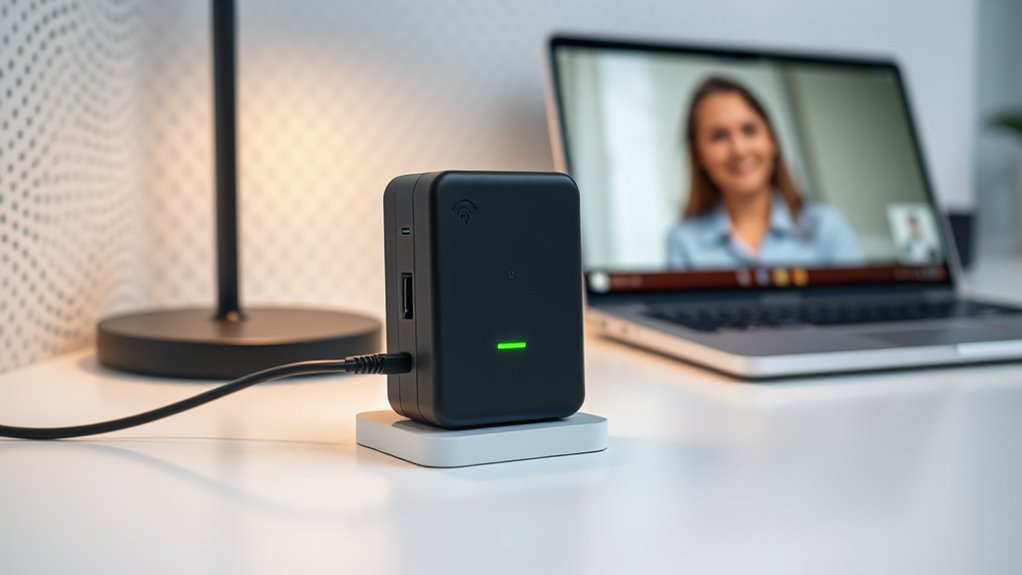
Finding an affordable Wi-Fi extender doesn’t mean you have to sacrifice quality or performance. To get the best value, check that the extender supports current wireless standards such as 802.11ac or ax, which ensure faster speeds and better reliability. Also, prioritize models with strong router security features to protect your network from threats. When choosing a budget-friendly option, consider these tips:
- Look for reputable brands with positive reviews
- Ensure compatibility with your existing router
- Verify support for recent wireless standards for future-proofing
A good extender should improve coverage without compromising security. Remember, a solid connection is essential for clear video calls, so choose wisely to avoid frustrating drop-offs or lag.
Step-by-Step Guide to Setting Up Your Wi‑Fi Booster
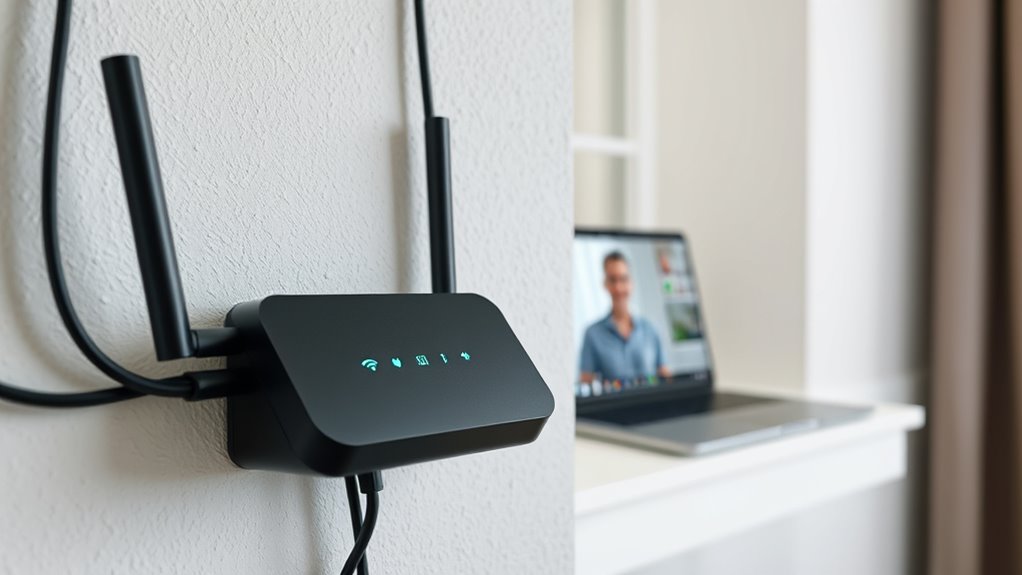
To get the best results, start by choosing the right booster for your needs and budget. Next, focus on proper placement to maximize your Wi‑Fi coverage. Follow these steps carefully to guarantee a smooth setup process and improved signal strength throughout your home. Remember, best Wi-Fi boosters can significantly enhance your connection quality, especially when paired with proper setup techniques.
Choosing the Right Booster
Choosing the right Wi-Fi booster is essential for improving your network’s coverage and performance. When selecting a booster, consider compatibility with your router, range needs, and smart home integration. A compatible booster guarantees seamless connectivity across devices and reduces lag during video calls. If you have a smart home, look for models that support multiple devices without compromising privacy.
Key points to keep in mind:
- Ensure compatibility with your existing router
- Choose a booster with sufficient range for your space
- Prioritize models with strong security features to address privacy concerns
Selecting the right booster can help eliminate dead zones, support your smart home devices, and keep your network secure. Focus on your specific needs to get the best performance and peace of mind.
Proper Placement Techniques
Proper placement of your Wi-Fi booster is essential for maximizing coverage and performance. Position it halfway between your router and the area where you experience weak signals, ideally in a central location. Keep it elevated and free from obstructions like walls or large metal objects, which can interfere with signal frequency. Ensure your booster is near your router to maintain strong router security settings, preventing unauthorized access. Avoid placing the booster too far from your main router, as this can weaken the connection. Test different spots to find the ideal position where signal strength improves without sacrificing router security. Proper placement helps your booster deliver a stronger, more reliable signal, making video calls clearer and reducing buffering issues. Additionally, understanding installation guidelines can help optimize your setup for better performance.
Optimal Placement Tips for Maximum Signal Coverage
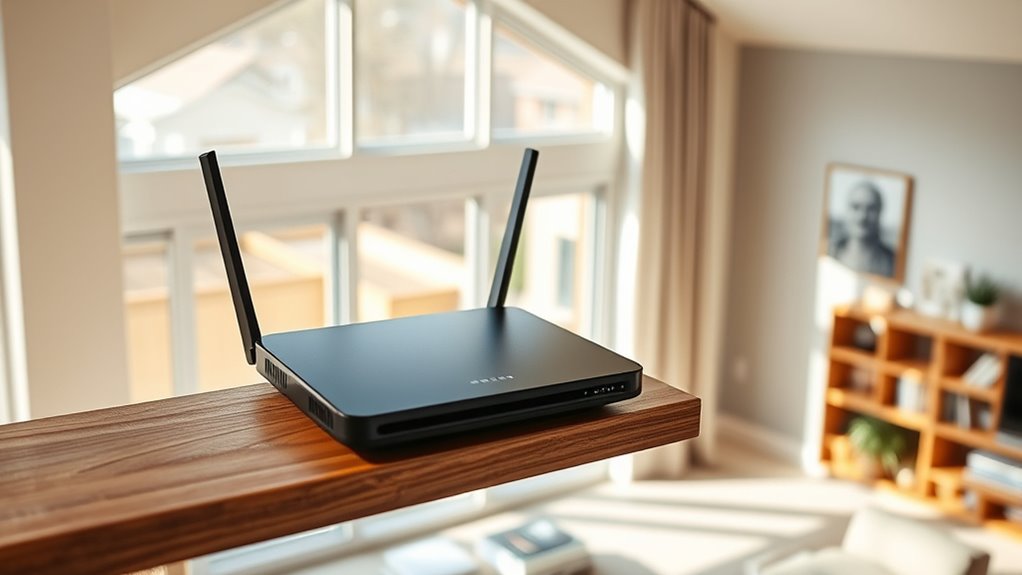
To get the best Wi-Fi coverage, you should place your router in a central spot to reach all areas of your home. Elevating your wireless devices and minimizing obstructions like walls and furniture can also enhance signal strength. Keep interference from other electronics in mind to ensure your connection stays fast and reliable. Additionally, positioning your router away from sources of electronic interference, such as microwave ovens and cordless phones, can further improve signal quality.
Centralize Your Router Location
Placing your router in a central location is key to maximizing your Wi-Fi signal coverage. When you choose a spot, avoid areas near thick walls, metal objects, or electronic devices that cause signal interference. A well-centered router ensures even distribution of the signal across your space. Using simple tools like a quick‑calculator can help you determine the best placement based on your home’s size and layout.
To optimize your router placement:
- Keep it elevated, like on a shelf or high table
- Avoid placing it behind furniture or inside cabinets
- Stay away from devices that emit electromagnetic signals, such as microwaves or cordless phones
This setup reduces signal interference and helps eliminate dead zones. Remember, the goal is to create a clear path for your Wi-Fi signal so your connection stays strong throughout your home. Proper router placement makes a noticeable difference in your overall Wi-Fi performance.
Elevate Wireless Devices
Elevating your wireless devices can substantially improve your Wi-Fi signal strength and coverage. When you position your router or extender higher, it reduces obstacles and helps distribute the signal more evenly throughout your space. Confirm your router’s placement promotes strong router security by keeping it out of sight from unwanted visitors, which also helps prevent interference. Elevating devices not only boosts your Internet speed but also minimizes dead zones, making video calls clearer and faster. Avoid placing routers near metal objects or electronic appliances, as these can weaken signal quality. Additionally, dog-friendly policies at nearby establishments can influence your choice of location if you’re bringing your pet along. By keeping your devices elevated and secure, you optimize coverage and protect your network from unauthorized access, resulting in a more reliable and faster Wi-Fi experience across your home or office.
Minimize Obstructions and Interference
Positioning your wireless devices thoughtfully can make a significant difference in your Wi-Fi performance. Proper router placement helps reduce wireless interference and ensures a stronger signal. Keep your router out in the open, away from thick walls, metal objects, or large appliances that can block signals. Elevate the router to a central location for even coverage across your space. Avoid placing it near microwaves or cordless phones, as these can cause interference. To optimize signal coverage, consider these tips:
- Place your router in a high, open spot, not on the floor.
- Keep it away from thick walls and large metal objects.
- Avoid proximity to devices that emit wireless interference, like cordless phones or baby monitors.
- Understanding wireless interference and how it affects signal quality can help you make better placement decisions.
These small adjustments can dramatically improve your Wi-Fi reliability and quality.
Troubleshooting Common Setup Issues
When setting up your Wi-Fi network, common problems can prevent it from working properly right from the start. First, verify your Wi-Fi security settings are correctly configured; weak or open security can cause connection issues. Check that your router firmware is up to date, as outdated firmware can lead to performance problems or connectivity drops. Reset your router to clear any temporary glitches, and confirm that your device is connected to the right network. Also, confirm that you’re using the correct password and network name. If you experience persistent issues, consider rebooting your modem and router, and consult your router’s manual for troubleshooting tips. Addressing these setup issues early helps ensure a stable, secure Wi-Fi connection for smoother video calls. Additionally, understanding industry transformations like AI automation can help you optimize your network for future demands.
Enhancing Your Network for Multiple Devices

To support multiple devices, start by optimizing your router placement to guarantee better coverage. Limiting each device’s bandwidth can prevent one from hogging the connection. Upgrading to a dual-band router helps distribute traffic more efficiently across different frequencies. Additionally, ensuring your network equipment supports high refresh rates can improve overall connectivity performance.
Optimize Router Placement
Optimizing your router placement is essential for ensuring a strong, reliable Wi-Fi signal across multiple devices. Position your router centrally in your home, elevated off the floor, and away from thick walls or metal objects. This helps distribute the signal evenly and reduces dead zones. Keep your router in an open, high spot for better coverage. Additionally, a good placement improves wireless security by minimizing unauthorized access points. Regularly update your router firmware to fix bugs and enhance performance. Remember, a well-placed router improves overall network stability, especially when multiple devices are in use simultaneously. To maximize your setup, consider these tips:
- Avoid placing the router near microwaves or cordless phones
- Use a Wi-Fi extender if needed for dead zones
- Secure your network with strong wireless security settings
- Low light office plants can help create a comfortable environment that encourages better focus and productivity during your work.
Limit Device Bandwidth Use
Managing the bandwidth of your devices is essential to maintaining a fast and stable Wi-Fi connection, especially when multiple gadgets are connected simultaneously. Bandwidth management helps prevent one device from monopolizing the network, which can slow down or disrupt your video calls. You can prioritize devices that need the most bandwidth, like your laptop or work phone, to ensure they get the necessary speed. Many routers allow you to set device prioritization through their settings, giving you control over which devices receive faster connections. Limiting background activities and bandwidth-heavy apps on other devices also helps. Active Bandwidth management is key to optimizing your network performance. By actively managing bandwidth and prioritizing key devices, you ensure a smoother, more reliable Wi-Fi experience, reducing lag and buffering during important video calls.
Upgrade to Dual Band
Have you considered upgrading to a dual-band router? It can markedly improve your Wi-Fi performance, especially with multiple devices. Dual-band routers offer both 2.4 GHz and 5 GHz frequencies, reducing network congestion. This upgrade is especially beneficial if you have a mesh networking system or devices supporting Wi-Fi 6, which thrive on faster, less crowded connections.
To maximize the benefits:
- Prioritize bandwidth for essential devices
- Use the 5 GHz band for streaming and calls
- Keep your firmware updated for peak performance
- Consider Gold IRA rollovers as part of your diversified investment strategy to secure long-term financial stability.
Switching to dual-band helps distribute network traffic, reduces interference, and ensures clearer video calls. It’s a straightforward upgrade that makes a noticeable difference in your Wi-Fi reliability.
Additional Tips for Improving Overall Wi‑Fi Performance

Improving your Wi‑Fi performance often requires more than just basic troubleshooting. Isn’t overlook router security; updating your firmware and changing default passwords can prevent unauthorized access that slows your network. Also, consider regular network monitoring to identify devices consuming excessive bandwidth or causing interference. Using tools to check your network’s health helps you pinpoint issues before they impact your connection. Position your router in a central, open location to reduce dead spots. Limit the number of connected devices during heavy use, and restart your router periodically to refresh the connection. These small steps can markedly boost your Wi‑Fi stability, ensuring smoother video calls and faster browsing. Staying proactive with security and monitoring keeps your network optimized and reliable. Additionally, reviewing your affiliate disclosures ensures transparency and helps you understand any potential influences on content recommendations.
When to Consider Upgrading Your Internet Plan
Sometimes, your current internet plan simply can’t keep up with your changing needs, especially if you notice frequent buffering, slow downloads, or lag during online gaming. If you’ve upgraded your devices or started streaming more HD content, it might be time to contemplate an upgrade. Look for plans with fiber optic connections, which offer faster speeds and better reliability. Also, check if your current plan has data caps that limit your usage, forcing you to slow down or pay extra. Consider upgrading if:
- You regularly hit data caps, restricting your activity
- Your internet speed feels sluggish during peak hours
- You need higher bandwidth for multiple devices or smart home tech
A reliable and scalable backup power system can ensure your internet stays up during outages, maintaining your online needs without interruption. An upgrade can improve your online experience and future-proof your setup.
Frequently Asked Questions
Can a Wi‑Fi Extender Improve Coverage on Multiple Floors?
Yes, a Wi-Fi extender can improve coverage on multiple floors, especially if you use a mesh network system. Mesh networks distribute your Wi-Fi signal evenly, reducing dead zones and ensuring better coverage. However, avoid placing extenders near sources of signal interference like thick walls or microwaves. Proper placement and using mesh technology help maintain consistent speeds across floors, making your video calls clearer and more reliable.
Will a $20 Wi‑Fi Booster Work With All Internet Service Providers?
A $20 Wi-Fi booster can work with most internet service providers if it’s compatible with your router. Check your router’s compatibility and support for signal amplification features before purchasing. Many boosters are designed to work universally, but verifying compatibility guarantees seamless setup and maximum performance. If compatible, it’ll amplify your Wi-Fi signal effectively, improving coverage and stability across your home or office without needing a new ISP or complex setups.
How Often Should I Replace or Upgrade My Wi‑Fi Extender?
You should replace or upgrade your Wi-Fi extender every few years to guarantee peak performance, considering changes in technology and device compatibility. Keep an eye on extender placement—placing it centrally and elevated helps. Regularly check for firmware updates and compatibility with your current router. If you notice slower speeds, frequent disconnects, or outdated technology, it’s time for an upgrade to improve coverage and device compatibility.
Does Using a Wi‑Fi Repeater Affect My Internet Speed?
Using a Wi-Fi repeater can affect your internet speed, especially if you don’t optimize router placement or reduce signal interference. When you place the repeater far from your router or near other devices, it weakens the signal, slowing down your connection. To improve speed, position your router and repeater in central, open spots and minimize interference from microwaves or cordless phones. This way, your Wi-Fi stays fast and reliable.
Are There Any Security Risks With Using a Wi‑Fi Booster?
You might worry about security risks with a Wi-Fi booster, but if you enable proper wireless encryption, your network stays protected. Just make certain the booster is compatible with your device, so it doesn’t create vulnerabilities. When configured correctly, it won’t expose your data or invite unauthorized access. Keep your firmware updated, use strong passwords, and enjoy better coverage without compromising your network’s security.
Conclusion
With a simple $20 Wi-Fi extender, you can turn frustrating video calls into crystal-clear conversations. Think of it as giving your signal a much-needed boost, lifting you above the buffering and lag. Don’t wait for the perfect internet plan—sometimes, small changes make all the difference. So, take control, set up your booster, and watch your connection strengthen—because clearer calls aren’t just a dream; they’re a few steps away.