
Many seniors overlook the vital privacy switch labeled “Who can see your future posts,” which controls the visibility of everything you share going forward. If set to “Public” or “Friends of Friends,” strangers could see your updates and personal details. By adjusting this setting to “Friends” or a custom list, you limit access and protect your privacy. Keep exploring to learn how to find and manage this key control for a safer Facebook experience.
Key Takeaways
- Many seniors overlook the “View As” feature, which reveals how their profile appears to others.
- They often miss adjusting past posts’ audience, leaving old content visible to strangers.
- Seniors frequently forget to review and customize their audience settings for future posts.
- The “Restricted List” feature is underused, limiting non-friends’ access to personal details.
- Regularly using privacy tools and “View As” helps seniors identify and fix unintended profile exposure.
Social Media Privacy Lockdown Guide: Complete Settings Guide to Protecting Your Family, Controlling Who Sees Your Posts, and Keeping Your Data Safe
As an affiliate, we earn on qualifying purchases.
As an affiliate, we earn on qualifying purchases.
Understanding Facebook’s Privacy Settings Menu

Have you ever wondered what each option in Facebook’s privacy settings actually does? Understanding the Privacy Settings menu is key to protecting your information. Facebook offers various options to control who sees your posts, personal details, and activity. By adjusting these, you can reduce the risk of privacy breaches that expose sensitive data or lead to identity theft. The platform also uses data encryption to secure your information during transmission, but your settings determine how visible your data is to others. Familiarizing yourself with these controls helps you stay in charge of your privacy. Take time to explore each option, from audience selectors to privacy checkups, so you can confidently manage your Facebook presence and keep your personal information safe. Regular maintenance and understanding privacy controls are essential for optimal security.

DEFAULT IS EXPOSURE: 12 PRACTICAL TOOLS TO RECLAIM YOUR PRIVACY IN A SURVEILLANCE-DRIVEN WORLD
As an affiliate, we earn on qualifying purchases.
As an affiliate, we earn on qualifying purchases.
The Significance of the “View As” Feature
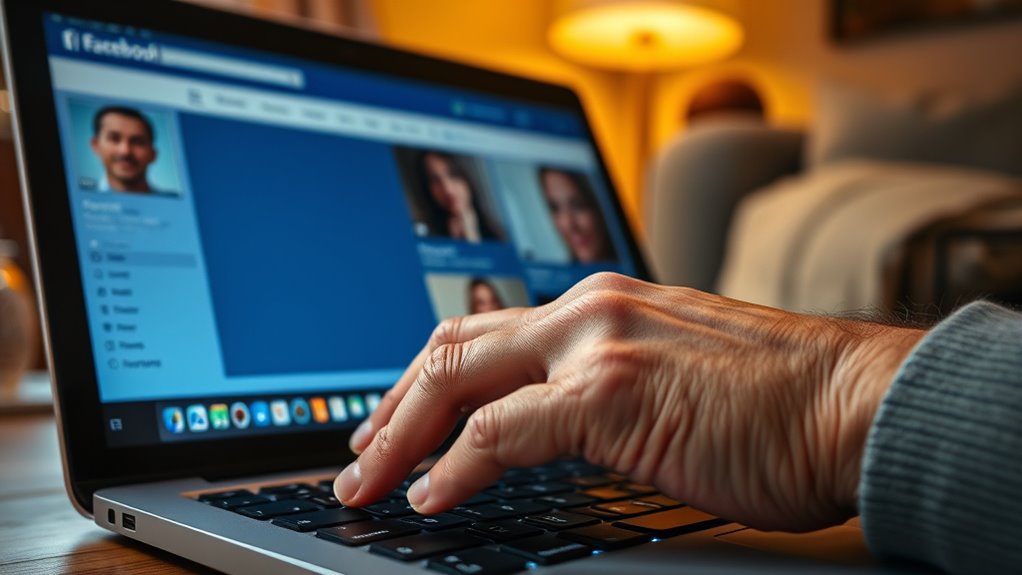
Ever wonder what your Facebook profile looks like to others? The “View As” feature lets you see exactly that, revealing your profile visibility to the public or specific friends. It’s a powerful tool for understanding what information is accessible and spotting potential privacy issues. By using “View As,” you can identify if your privacy settings are working as intended or if certain details are unnecessarily exposed. This boosts your privacy awareness and helps you make informed decisions about what to share. Many seniors overlook this feature, leaving their profiles more visible than they realize. Regularly checking “View As” guarantees your privacy stays in your control, preventing unwanted viewers from accessing personal information and giving you peace of mind. Additionally, understanding privacy settings helps you optimize your profile security.

MEINUOKA 220°Wide Angle Door Viewer Peephole with Privacy Cover, Fits 1.3"–2.4" Thick Doors, 0.63" Diameter, Matte Black, 1 Pack
Enhanced Door Security – Upgrade your home safety with a 220° wide-angle door viewer. The HD optical glass…
As an affiliate, we earn on qualifying purchases.
As an affiliate, we earn on qualifying purchases.
How to Use the “Who Can See Your Future Posts” Setting
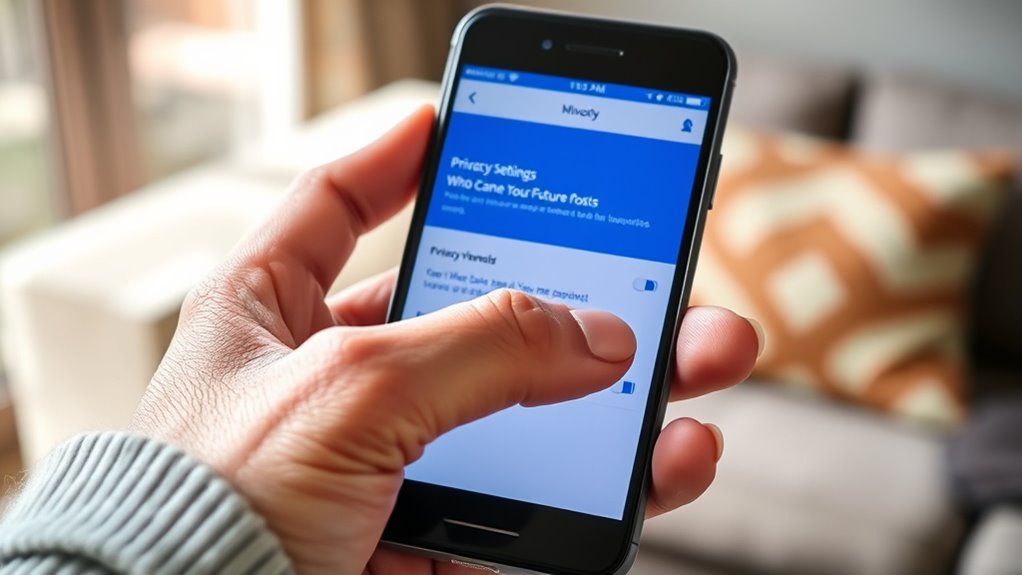
To safeguard your privacy, you need to modify your Facebook settings for future posts. You can choose who sees your posts by selecting your audience preferences. Doing so helps guarantee your content is shared only with the people you trust. Additionally, understanding family background influences can help you better manage your online presence and privacy settings.
Adjust Privacy Settings
Adjusting your privacy settings on Facebook is straightforward, starting with the “Who Can See Your Future Posts” option. Many seniors fall for privacy myths that assume Facebook already protects their data, but understanding how to control who views your posts is essential. By customizing this setting, you ensure only trusted friends see your updates, reducing privacy risks. Keep in mind that Facebook uses data encryption to help protect your information, but it’s not foolproof. Taking charge of your privacy means regularly reviewing these settings and staying informed about potential vulnerabilities. Don’t rely solely on the platform’s default options—they may not align with your privacy needs. Instead, actively manage who can see your future posts to keep your information secure and your online experience safe. Learning about privacy controls can further help you tailor your Facebook experience to your comfort level.
Select Audience Preferences
Once you’ve opened the privacy settings, it’s important to choose who can see your future posts. Under the “Who Can See Your Future Posts” option, you can select specific audiences, like friends, friends except acquaintances, or your custom friend lists. If you want to control photo tagging, consider setting your audience to a limited group to prevent unwanted tags from reaching everyone. Using friend lists allows you to share posts with specific groups, such as family or close friends, giving you more privacy. Remember, you can always change these settings later, so start with a broad audience and narrow it down as you get comfortable. This way, you keep your posts visible only to the people you trust most. Additionally, understanding your options can help maintain your online privacy and prevent unintended sharing.

The Latest in the Campaign Against Facebook: What’s Wrong with Facebook and What We Can Do to Fix It
As an affiliate, we earn on qualifying purchases.
As an affiliate, we earn on qualifying purchases.
Adjusting the Audience for Past Posts

You can change the audience for your past posts to safeguard who sees what you’ve shared. Managing your past visibility helps protect your privacy and keeps your profile updated. Customize your privacy settings to ensure your posts are visible only to the people you choose. Being aware of regional legal resources can also help you understand how privacy laws vary by location.
Changing Post Audience
If you’ve shared a post in the past with a broad audience, it’s possible to alter who can see it even after posting. Facebook’s privacy options allow you to adjust the audience control for individual posts. To do this, go to your timeline and find the post you want to modify. Click the three dots or the audience icon next to it, then select “Edit Privacy” or “Audience.” From there, you can choose a more restricted group, like friends or only you. This way, you can control who views your past posts without deleting them. Remember, changing the post’s audience helps protect your privacy and ensures only the right people see your content. It’s a simple step to improve your Facebook privacy settings. Additionally, understanding privacy controls can help you make more informed decisions about your online presence.
Managing Past Visibility
Managing past visibility on Facebook allows you to control who can see your previous posts, even after they’ve been published. Many seniors believe privacy myths, thinking once a post is shared, it’s locked forever. In reality, you can change the audience for past posts to safeguard your privacy. To do this, go to your activity log, select “Manage Activity,” and adjust the audience for multiple posts at once. Remember, Facebook’s security vulnerabilities help keep your information secure, but it’s still wise to review your past posts’ visibility. This way, you prevent unwanted eyes from accessing old content. Regularly managing your past posts ensures your online presence reflects your current privacy preferences, reducing the risk of sharing more than you intend.
Customizing Privacy Settings
Adjusting the audience for your past posts on Facebook is a straightforward way to control who can see your old content. To do this, go to your privacy settings and select “Limit Past Posts” or customize your audience for specific updates. Be aware that Facebook’s data encryption protects your information, making it secure from unauthorized access. However, third-party apps connected to your account can sometimes access your posts, so review and revoke permissions for apps you no longer use. By customizing your privacy settings, you ensure that only your desired audience views your history. Regularly updating these settings helps maintain your privacy and prevents past posts from being exposed to unintended viewers. It’s a simple step to regain control over your digital footprint. Additionally, understanding the dog names you choose can reflect your personality or interests, much like adjusting privacy settings allows you to express your desired level of openness.
Managing Profile Visibility to Non-Friends
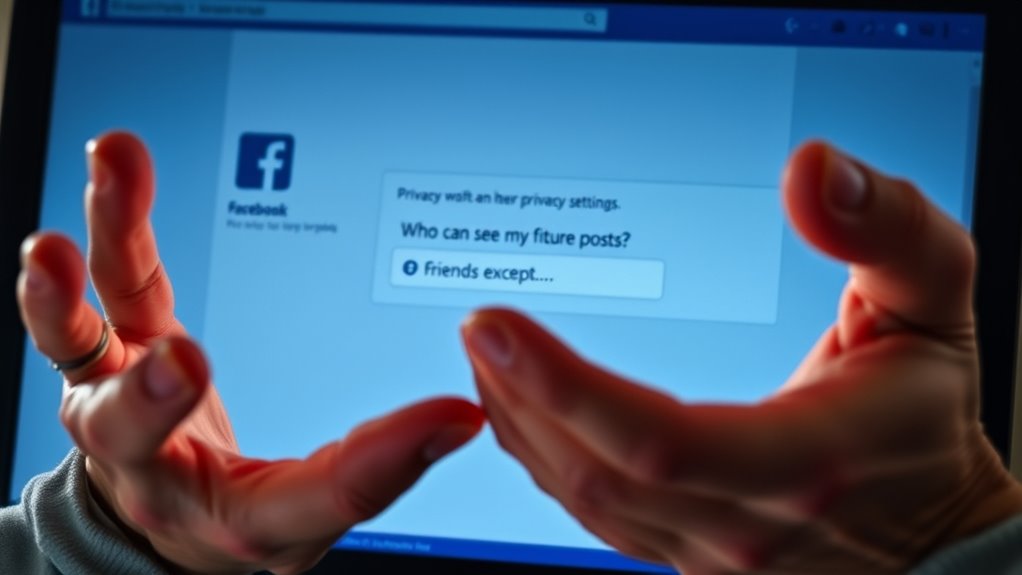
To keep your profile private from anyone who isn’t your friend, you need to carefully regulate who can see your information. Start by adjusting your profile privacy settings so only friends can view your details. Use the audience selector to limit who sees your posts and personal info. Managing your friend list effectively is key—regularly review and remove unfamiliar or inactive contacts. This prevents strangers from accessing your profile through mutual friends or search results. You can also set your profile to private or review your profile visibility settings at any time. By actively controlling your profile privacy and managing your friend list, you ensure that only trusted individuals see your information, reducing the risk of unwanted exposure. Additionally, understanding the privacy and cookie policies helps you better control your online presence and safeguard your data.
Recognizing the “Limit Past Posts” Option
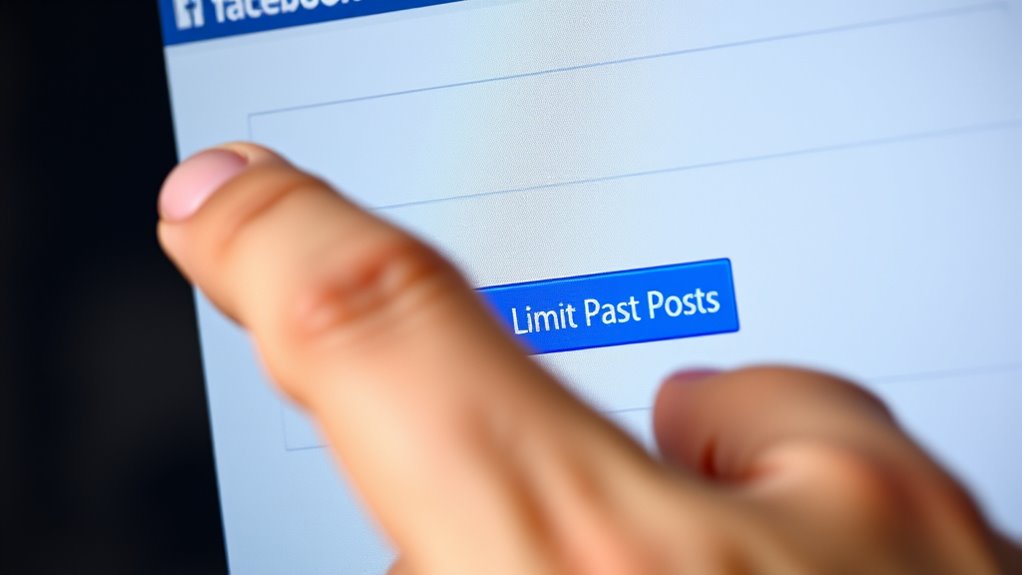
After reviewing and updating your current privacy settings, you might want to take an extra step to control the visibility of your past posts. Facebook’s “Limit Past Posts” feature helps you do just that. When you click this option, it automatically changes your old posts’ privacy to “Friends only,” aligning with Facebook’s privacy policies. This prevents strangers or non-friends from viewing your older content. Recognizing this feature is essential, especially since Facebook uses data encryption to protect your information, but you still control what’s visible. By limiting past posts, you guarantee your information stays private, reducing unnecessary exposure. It’s a simple, effective way to enhance your privacy without deleting old content, giving you peace of mind and better control over your online presence. Additionally, understanding your privacy controls allows you to make informed decisions about your online identity.
Setting Up Restricted Lists for Selective Sharing
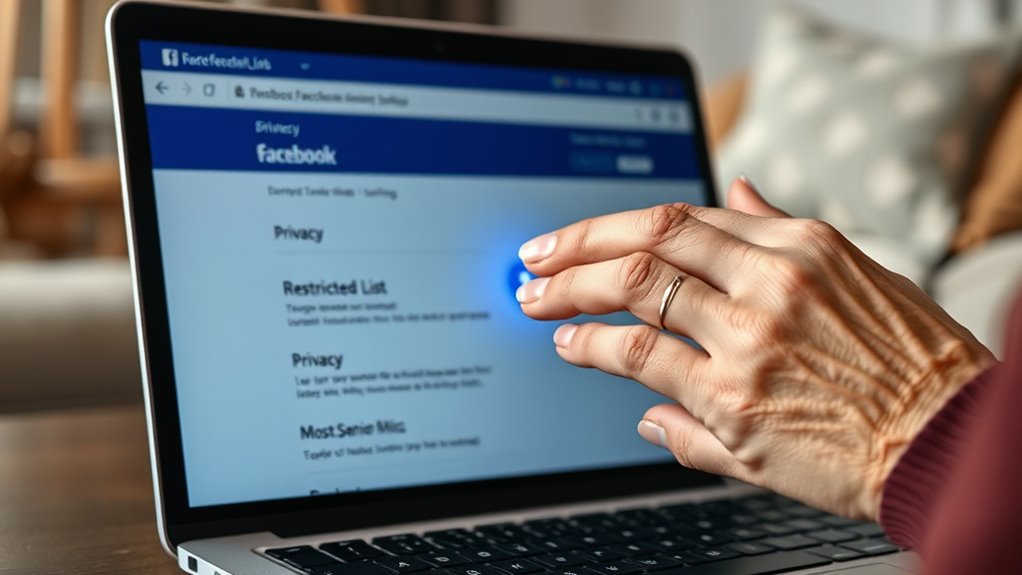
Setting up restricted lists on Facebook allows you to control who sees specific posts, giving you more privacy and peace of mind. You can create a restricted list, adding friends you want to limit from certain photo sharing or updates. When posting, select the audience dropdown and choose your restricted list, ensuring only your preferred friends see the content. This feature is especially useful for sharing personal photos or updates without exposing them to everyone. Managing your friend lists helps you customize your privacy settings effectively. By setting up restricted lists, you maintain control over your shared information, avoiding unintended exposure. Utilizing privacy features like self-understanding can further help you make informed decisions about what to share and with whom. This simple step helps you share selectively, making your Facebook experience safer and more tailored to your comfort level.
Reviewing and Customizing Your Profile Privacy Settings
Reviewing and customizing your profile privacy settings guarantees you have control over who can see your personal information and posts. Use Facebook’s privacy tools to fine-tune visibility, ensuring your data stays secure. Start by adjusting who can see your profile details, posts, and friends list. Enable data encryption where possible to protect your information from unauthorized access. Here’s a quick overview: User Control over Data Collection
The Role of Privacy Checkup in Protecting Your Information
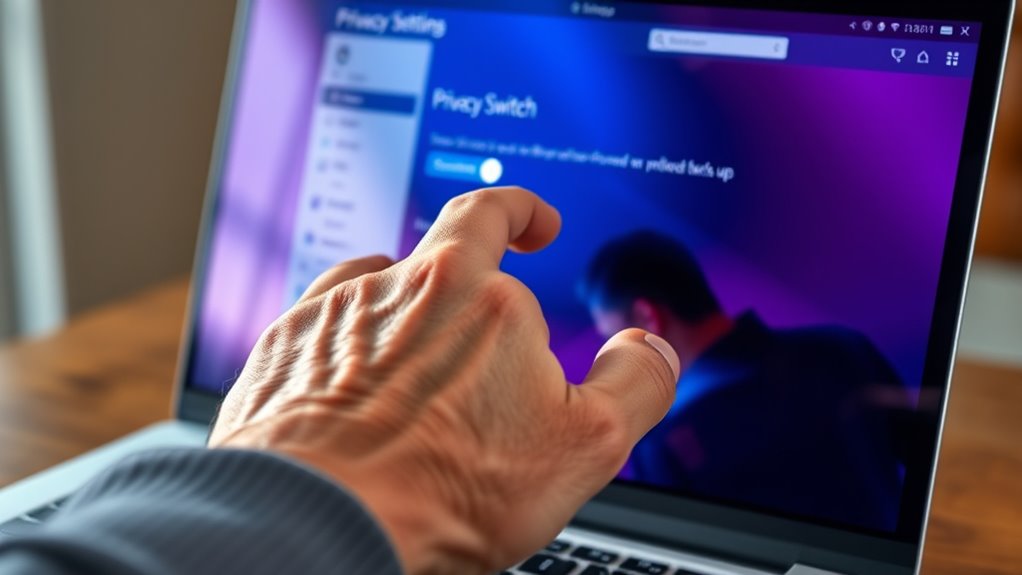
Using Facebook’s privacy tools regularly helps make certain your personal information stays secure. The Privacy Checkup guides you through key settings that control who sees your posts, personal details, and data sharing. It’s especially important because it helps you manage: 1. Who can see your profile and posts 2. Which third party apps have access to your data 3. How your information is protected through data encryption and privacy policies, ensuring you understand how your data is used and stored.
Tips for Staying Updated on Privacy Features
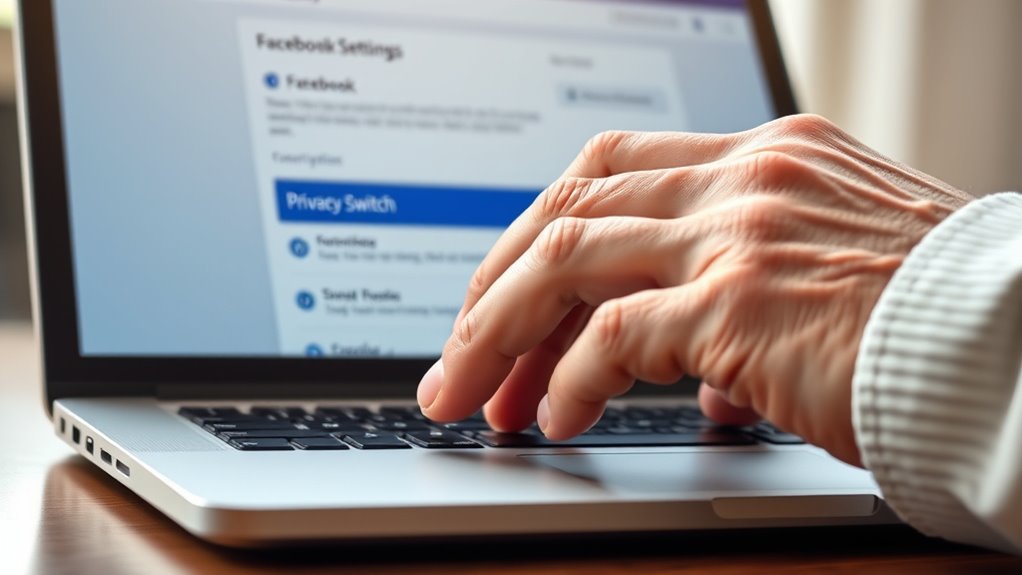
Staying informed about Facebook’s latest privacy features is essential to keep your personal information secure. Regularly review Facebook’s privacy policy to understand updates on data encryption and how your data is protected. Follow Facebook’s official blog or help center for timely announcements about new privacy tools and settings. Enable notifications for privacy updates to stay ahead of changes. Consider subscribing to newsletters or newsletters from privacy advocacy groups focused on social media security. By actively checking these sources, you’ll know when new privacy features are introduced, allowing you to adjust your settings promptly. Staying updated ensures you leverage the latest privacy enhancements, like improved data encryption, to better safeguard your personal information on Facebook. cookie categories
Frequently Asked Questions
How Often Should I Review My Facebook Privacy Settings?
You should review your Facebook privacy settings at least once a month to stay safe with photo sharing and friend requests. Regular checks help you control who can see your posts, personal info, and who’s sending friend requests. This way, you prevent unwanted access and keep your account secure. Make it a habit to revisit your settings often, especially after Facebook updates or if you notice any suspicious activity.
Can I Customize Privacy Settings for Specific Friends or Groups?
Yes, you can customize privacy settings for specific friend groups on Facebook. Think of it as having different keys for different doors. You simply create custom privacy for each group, choosing who sees your posts or details. This way, you control your content with precision, sharing more openly with close friends while keeping others in the dark. It’s a smart way to protect your privacy while staying connected.
What Are Common Mistakes Seniors Make With Facebook Privacy?
You often make mistakes with Facebook privacy by sharing too much due to default settings. Many seniors misinterpret permissions, thinking they’re more private than they actually are. You might not realize that your posts could be visible to more people than intended or that certain information is accessible publicly. Always review your privacy settings carefully, especially the sharing defaults, to avoid accidentally exposing personal details.
How Does Facebook Inform Users About Privacy Policy Changes?
Facebook generally keeps you in the loop about policy updates through privacy notifications, which appear in your feed or notifications center. These alerts often include a brief summary, encouraging you to review the details. While these updates aim to inform, it’s wise to regularly check the privacy settings or the Help Center to stay fully aware of any changes, ensuring your personal information remains protected and your preferences are up-to-date.
Are There Privacy Settings Specific to Facebook Mobile App Versus Desktop?
Yes, there are privacy settings specific to the Facebook mobile app versus desktop. You can adjust mobile app privacy by tapping the menu icon and selecting Settings & Privacy, then Privacy Shortcuts. Desktop privacy settings are accessed through the dropdown menu in the top right corner. Keep in mind, mobile app privacy often has simplified options, so you might notice some differences compared to desktop privacy controls. Staying aware of these distinctions helps you better protect your information everywhere.
Conclusion
It’s ironic how many seniors overlook Facebook’s privacy switch, thinking their info’s safe by default. You’d think clicking “View As” or adjusting your settings would be second nature, but nope. The real trick? Staying vigilant and using these features regularly. Because in a digital world, the biggest safeguard is knowing where your info goes—and maybe, just maybe, flipping that privacy switch isn’t so hidden after all. Happy browsing, safely!